Fixture Offsets
You can define Fixture Offsets in SmartCAM several ways. This is a simple and quick method to create two offsets, as illustrated below. Common names for these offsets are G55 through G59, which this demonstration uses, but can be named what ever is appropriate for your control.
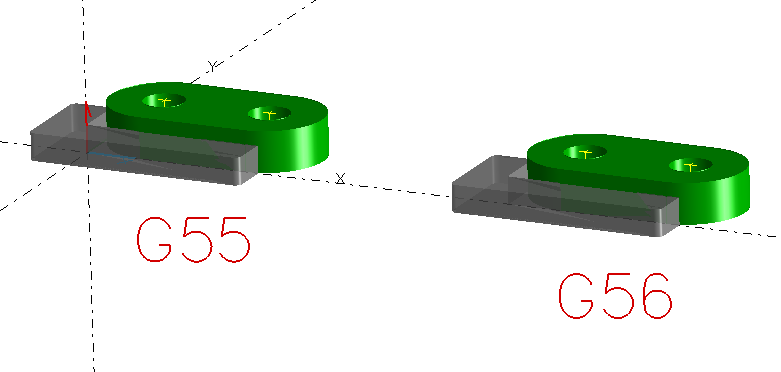
Use the model below to try this exercise. You can use the installed lsmill.smf and lsmill.cgt Code Generator files for the final part of this exercise.
| Milling applications | chain_link.pm5 |
|---|
Set Snaps: Set the Snap toggles as shown. End points and arc centers are all that will be required for creating the workplanes that define the fixture locations.

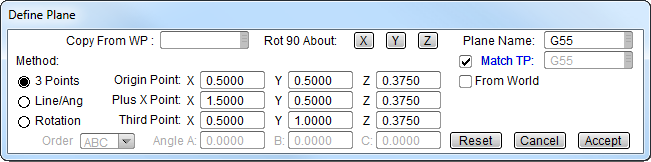
Point locations: These are the locations for the fields of the Define Plane panel.

Workplane Manager - New Plane: Be sure that Match TP is enabled and name the Plane with the appropriate fixture offset name that your control uses. In this case, the first fixture is called G55.
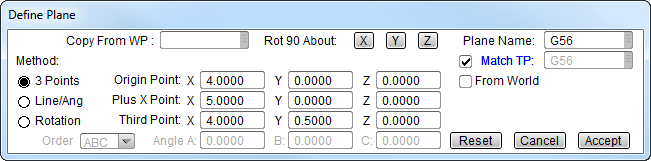
Workplane Manager - New Plane: For the second fixture, again check Match TP. Match TP ensures that the Tool Plane is aligned with the workplane. The SmartCAM Code Generator uses the Tool Plane, not the Workplane for dimensional output. The Workplane name is used as an identifier, or name, in the Code Generator. The second fixture is called G56.
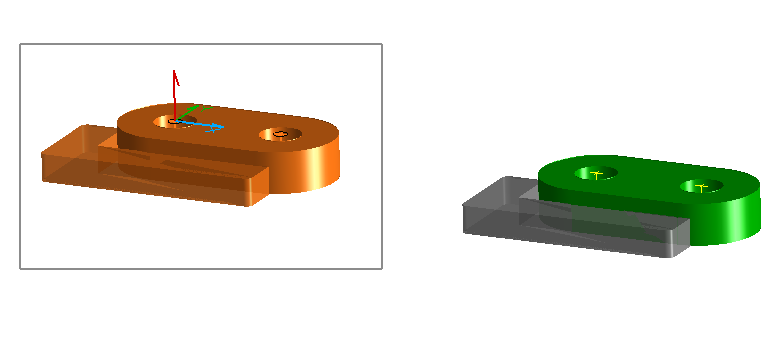
Box Group: Box Group the first part. This is in preparation of assigning it to the G55 fixture workplane.
Edit - Property Change - Workplane: You can select the Workplane from the List View. Clear the Group (Select None) and repeat the process for the second part, assigning the second part to G56.

Add/Edit your CGT: Edit your CGT (Code Generator Template) file to add or edit the @TPINDX section. This section is called at each tool plane indexing or shift. The #WKPLN is the CGT word that outputs the Workplane name from the model. Surround the #WKPLN word with conditional brackets in order to suppress its output if it is not needed. You will likely need to add the #WKPLN word to the @START section so that it is set at the beginning.
@TPINDX
<#WKPLN>
@
Edit your Machine File: Edit your SmartCAM Machine File (SMF) to set question 303 to zero. This tells the Code Generator to output the code dimensions local to the current workplane.
Ready for Code: The model and Code Generator are now ready to output code that includes Fixture Offsets.
 T1
 G55
 M03 S1000
 G00 X0.0 Y0.0
 Z0.1
 G81 Z-0.4877 R0.1 M08 F3.4
 X1.0
 G56
 X0.0 Y0.0 Z-0.4877 R0.1 F3.4
 X1.0
 G80
 M05
 M30